 Modern Easy Build Steps
Home / Guides / How to read a build material list
How to read a build material list
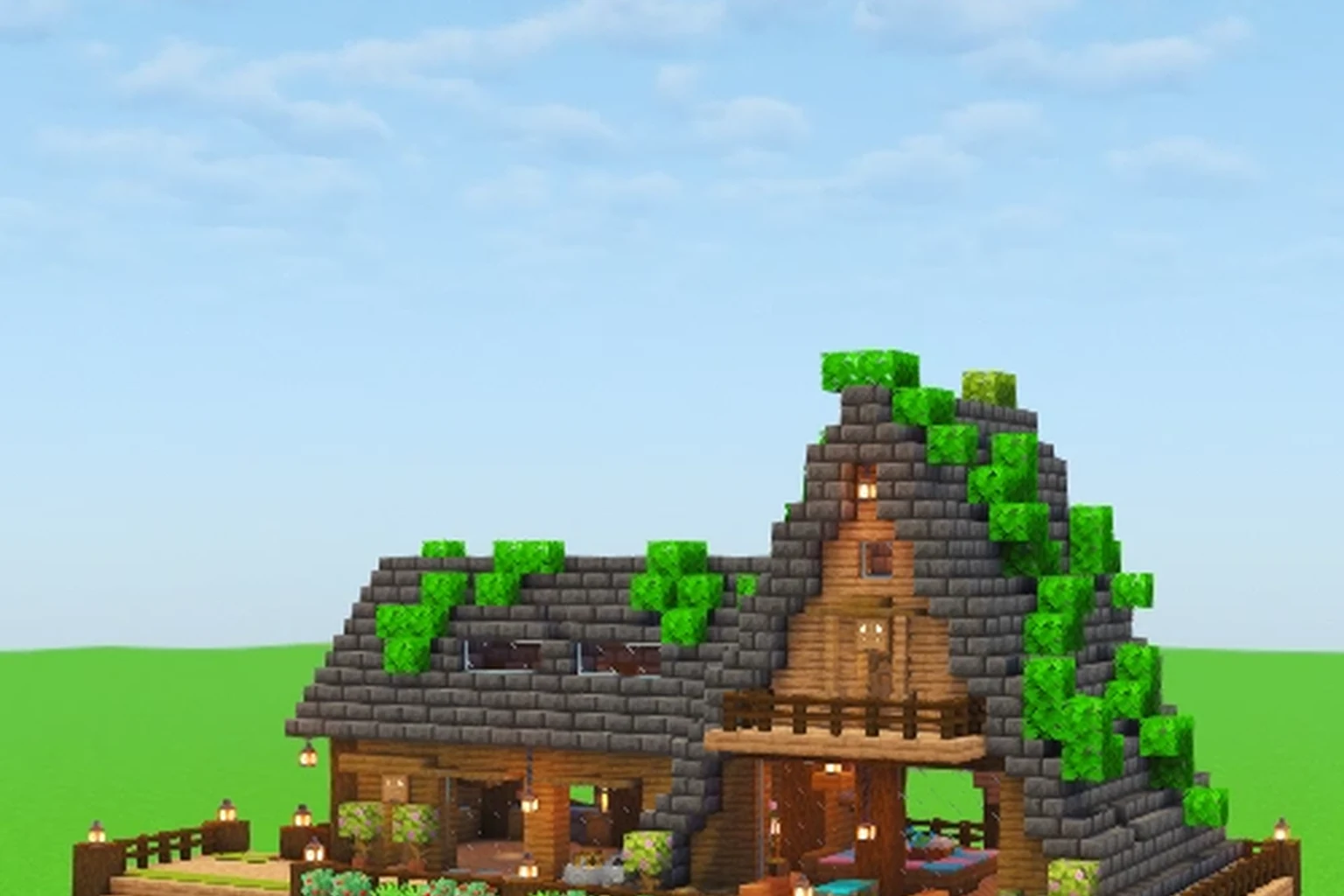
Read the material list on the plan page first. Each row is a block name, a quantity, and the catalog icon. Then walk the layers. The same icons sit in a horizontal strip under the photo so you can check what the current slice uses without flipping back.
Gather materials for a plan
- Open the plan and scroll to Materials.
- Note each icon, name, and quantity.
- Collect those counts in your world or inventory.
- Open Walk the layers and use the icon strip as a reminder.
- If a count looks short, go back to the plan page list. That list is the full bill.
The plan page list is the full bill
The plan page stacks cover, name, hall chip, layer count, difficulty stars, size (width, height, length), the about card, then materials. Quantities are the total for the whole build, not for one layer.
Icons come from the catalog API. If an icon is still loading you will see a small cube placeholder, then the real block art. Names stay readable either way.
The layer strip is a reminder, not a second inventory
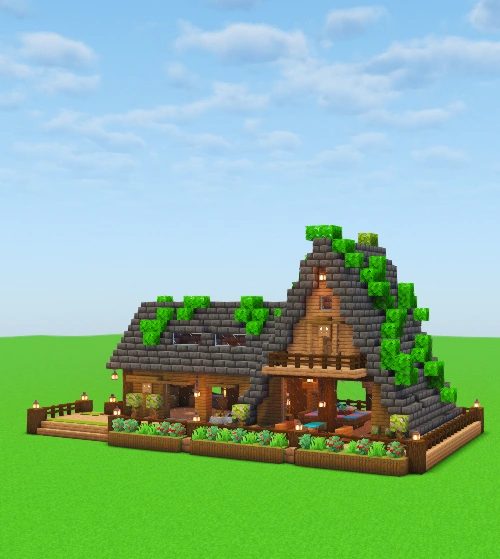
During the walk, block icons scroll sideways under the photo. Use them to confirm you are holding the right block for the slice on screen. Do not treat the strip as a new count. The plan page still owns the totals.
Cottage and bakery plans often pull a long list (wood, stone, glass, plants). Scroll the list fully once before you start placing. It is cheaper than stopping on layer 12 because you missed leaves.
Lifetime Access and the list
Locked plans still show the cover and hall. Unlock is a one-time $4.99 purchase, not a subscription. After that, every hall's material lists and layer photos open without the paywall.
In the app
See Lifetime Access
One payment removes ads and opens every plan, including material lists.
ContinueFAQ
Are quantities per layer or for the whole build?
The plan page list is the whole build. The layer strip is a visual reminder while you walk photos.
What if an icon is missing?
The name and quantity still show. The cube placeholder means the icon has not loaded yet.