 Modern Easy Build Steps
Home / Guides / How to follow layer by layer build photos
How to follow layer by layer build photos
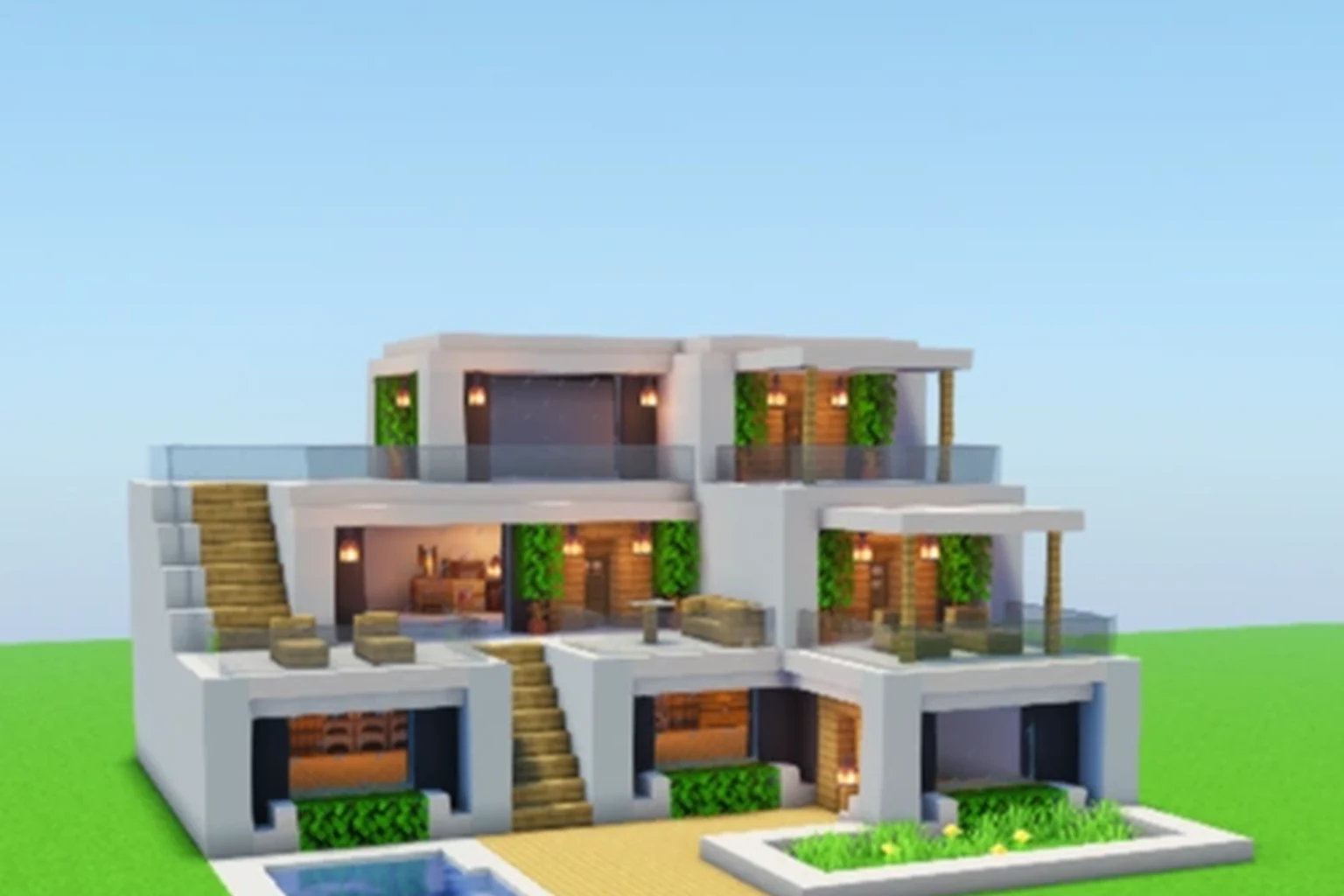
Open the plan, tap Walk the layers, then place what you see in the current photo before you tap Next. Each layer is one slice of the build. The photo is the instruction. The strip of block icons under it is the shopping list for that slice.
Follow a plan layer by layer
- Open a plan from House, Statue, Vehicle, Beacon, or Redstone.
- Read the cover, size, and material list on the plan page.
- Tap Walk the layers.
- Match the photo on screen, then mark the layer complete if you want a record.
- Use Next until the last layer, then Done.
What a layer photo is
A layer is a horizontal slice. The first photo is usually the footprint. Later photos add walls, roofs, lamps, or the beam on a beacon. You are not guessing from a single cover shot.
On the layer screen the photo fills the top of the phone. Under it you get the material icons for the plan, the line Layer 3 of 18 (the numbers change per plan), and Back / Next. Pin sits in the toolbar so you can save the plan without leaving the walk.
Work one photo at a time
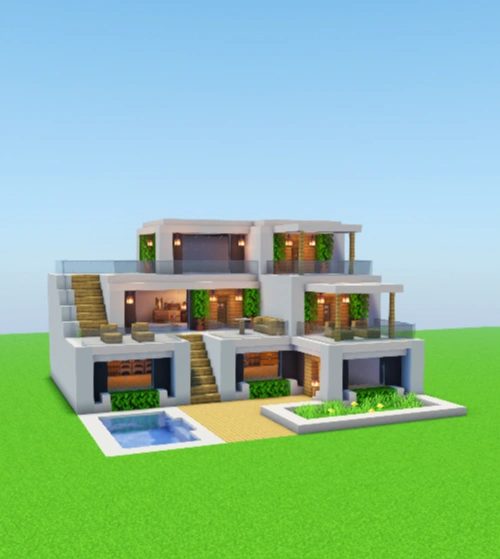
Zoom with the usual iPhone pinch if a block is small on the grass. The app now crops in on the structure so you are not staring at empty field. Still, compare edges and corners against the photo, not against memory of the cover.
If a plan has no step photos yet, the layer screen says Layers not ready. Pick another plan from the same hall. House has 121 plans, so you can switch without leaving the shelf.
In the app
Open the House hall
Start with a house plan that already has layer photos, then walk them on iPhone.
ContinueKeep your place
Mark layer complete as you finish a slice. Progress stays on the device. Reset progress is on the plan page if you want to run the same build again.
Pin the plan from the layer screen or the plan page. Pinned plans show up on the Pinned tab, which is useful when you are mid-house and need to check a statue later.
FAQ
Do I need every layer photo to start?
You need the walk for that plan. If step photos are missing, the app tells you on the layer screen. Choose another plan in the same hall.
Can I jump to a later layer?
Use Next until you reach it. The counter shows which slice you are on so you do not lose the row.